Keep Clean - File Master
- 3.9
- Rating
- 1.00M
- Installs
- Free
- Price

 Analysis by App-foxy
I approached Keep Clean - File Master as a practical storage and device-maintenance tool rather than expecting it to transform my phone overnight. Its purpose is straightforward: help remove unwanted files, organize storage, lock selected apps, and inspect basic device information. That combination makes it more useful than a single-purpose cleaner, especially if you want a few everyday maintenance tools in one place.
The app is free, aimed at everyone, and belongs to the productivity category. It was developed by Beijing Yuexi Qingfeng Culture Media Co., Ltd. The current release is version 1.0.14, and it works on devices running Android 7.0 or later. Its average rating sits at 4.0 from around 1.7 thousand ratings, while its installation count has passed one million. Those figures suggest that it has reached a sizeable audience, although I would still judge it by how well its workflow fits my own habits rather than by popularity alone.
How I use Keep Clean - File Master in a normal week
My preferred starting point is a simple baseline check. I open the storage area, look at what is taking space, and decide whether the suggested cleanup is actually useful before removing anything. That last step matters. A cleaner is not automatically helpful just because it finds files; the value comes from separating disposable clutter from material I may want later.
You May Also Like

 Blood Strike: 2.5 Anniversary
Blood Strike’s Loadouts Turn Every Drop Into a Tactical Gamble
A close look at Blood Strike’s custom loadouts: how fast access to signature weapons reshapes its battle royale rhythm, rewards preparation, and narrows the gap between fights.

 Pandora - Music & Podcasts
Pandora’s Music Is Easy to Start, but Harder to Recover
Pandora’s strength is its low-effort path from a seed to a station. Its weak spot is how much confidence it asks you to place in connection, setup, and quiet recovery.

 8 Ball Pool
 Is Built on Rivalries, Rematches, and Routine
A close look at the rivalries, rematches, shared routines, and unanswered safety questions that turn a quick pool match into a persistent mobile community.

 Samsung Music
’s Quiet Strength Is Playing What You Already Own
Its reach comes less from spectacle than from dependable access to a personal library. That simplicity is both the app’s strongest retention engine and its ceiling.

 AccuWeather: Weather Radar
AccuWeather Review: A Quick, Clear Forecast for Everyday Decisions
For everyday plans, the best forecast is the one you can understand quickly. AccuWeather makes rain timing, radar, and local conditions easy to act on, with a few trade-offs.

 Hill Climb Racing
Why Hill Climb Racing Still Turns Crashes Into One More Run
A tiny car, a bumpy hill and one more upgrade: Hill Climb Racing keeps resurfacing because its simple chaos makes every near-miss feel personal.
More From Our News Desk



For example, I would use the app after downloading several documents for a trip, saving temporary images from a messaging conversation, or trying a few applications that I later removed. Instead of deleting files at random, I first review the categories presented by the app. This makes the process less stressful and helps avoid the common mistake of treating every large file as junk.
The most useful routine is not a dramatic one-time cleanup. I prefer a short inspection when my phone begins to feel crowded, followed by a second look at the largest or least familiar items. That repeatable habit makes the app feel like a maintenance assistant. It does not replace sensible file management, but it gives me a convenient place to begin.
The storage tools are particularly suitable for people who do not want to explore several system menus. Android already includes storage controls, but they can be spread across settings, individual application pages, and file-management screens. Keep Clean - File Master brings related actions closer together, which is helpful when I want a quick overview instead of a long manual search.
Cleaning without surrendering control
I would not press a broad cleaning button immediately after opening the app. My better approach is to inspect the results, pay attention to file names and locations, and remove only items that I recognize as disposable. This is one of the main trade-offs: convenience is valuable, but automatic suggestions still deserve a human check.
A useful habit is to clean in stages. I start with obvious temporary material, then revisit larger files separately. This prevents a rushed session from turning into accidental deletion. It also makes it easier to understand why storage has filled up. If the same type of file keeps returning, the real solution may be changing how I download or share content rather than repeatedly cleaning it.
Keep Clean - File Master is therefore better for guided tidying than for deep file archaeology. Someone who enjoys browsing folders, renaming documents, and creating a detailed archive may prefer a dedicated file manager. I see this app as the quicker front door: it helps me identify possible clutter before I decide what deserves a closer look.
Using the app lock as part of the routine
The app-lock feature adds a different kind of usefulness. Storage cleanup is occasional, while locking applications can become part of daily phone use. I would use it for apps that contain private conversations, personal notes, or information I do not want casually opened when I lend my phone to someone.
The important point is to keep the lock list selective. Protecting every application can make the phone feel slower to use because even harmless tasks require an extra step. I prefer choosing only the applications that genuinely need a privacy barrier. That creates a practical balance between protection and convenience.
I would also test the locked apps immediately after setting them up. A security feature is only useful if I understand when it appears and how it behaves during normal use. If I am handing the phone to a family member to show a photo or make a call, I want to know exactly which areas remain protected and which remain accessible.
Device information that helps with troubleshooting
The device-information area is easy to overlook, but it can be useful when I need a quick snapshot of the phone. Instead of searching through several technical menus, I can use one place to check basic details while diagnosing storage pressure or deciding whether an application is suitable for the device.
This is not a replacement for the full Android settings application or manufacturer support tools. For advanced troubleshooting, I would still use the system pages that expose more detailed options. The advantage here is convenience: the information is presented alongside cleaning and privacy tools, so it can support a quick maintenance session.
Settings and habits that make the tools more useful
I found that the best results come from treating the app as a set of separate tools rather than one large automatic action. Cleaning, locking, and device inspection serve different purposes. Combining them into one careful routine is more effective than repeatedly tapping whatever button looks most prominent.
Before cleaning, I would check whether the proposed items include files I still need. Before locking an application, I would ask whether the extra privacy step will interfere with frequent use. Before relying on device information, I would confirm any important technical detail in Android’s own settings. These small checks reduce friction and keep the app in its proper role.
There is also a useful distinction between maintenance and emergency recovery. If the phone is nearly full and I need space immediately, I would first remove files I can identify with certainty, such as old downloads or duplicate media I have already backed up. I would not assume that a cleaner can solve every storage problem. Large videos, offline maps, music collections, and application data may require decisions that only I can make.
For privacy, I recommend setting up the lock feature when the phone is calm rather than during a rushed handoff. Choose the applications deliberately, open each protected area once, and make sure the experience feels natural. This turns the feature into a dependable habit instead of a setting I forget about until I need it.
One practical workflow is to use the device-information screen before and after a cleanup. I can note the general state of the phone, remove clearly unwanted material, and then check again. I would not treat the result as a scientific measurement, but the comparison can reveal whether my cleanup was meaningful or merely cosmetic.
What I would check before trusting a suggested cleanup
I look for context, not just file size. A large item may be important, while a collection of small temporary files may be safe to remove. I also consider whether I may need the material offline. A file downloaded for a journey, a work presentation, or a school project can look unnecessary once the immediate task is over, but deleting it too early creates a new problem.
My rule is simple: if I cannot identify an item, I leave it alone until I understand it. That may sound cautious, but it is especially sensible with any cleaner that presents automated recommendations. The app can make discovery faster; it cannot know the personal value of every file on my phone.
This is also where Keep Clean - File Master differs from a more advanced file manager. A dedicated manager usually gives me deeper folder-level control and more ways to sort or move content. This app focuses on a simpler decision: review likely clutter, manage selected privacy needs, and see device details without building an elaborate filing system.
Faster patterns for repeat users
Once I know which categories are safe for my phone, I can make the routine quicker. I begin with the same storage section each time, review familiar temporary items, and leave unusual files for a slower inspection. This creates a repeatable pattern without turning the process into blind automation.
Another efficient pattern is to separate cleanup from app locking. If I am preparing the phone for someone else to use, I first lock the privacy-sensitive applications and only then consider storage cleanup. That order prevents me from becoming distracted by unrelated files and keeps the immediate privacy task clear.
For a family phone, I would use the app as a teaching aid. I could show another user how to review storage suggestions, explain why unknown files should not be removed casually, and choose a small set of applications for locking. The result is better than simply telling someone to “clean the phone,” because it builds a safer decision-making habit.
For a work phone, I would be more conservative. I would avoid deleting anything connected to current projects until it had been checked elsewhere. The app may help reveal storage pressure, but work documents often have names or locations that are not obvious. In that situation, a full file-management process or an organization-approved tool may be the better choice.
Where the app reaches its limits
The biggest limitation is that convenience cannot replace judgment. A cleaner can surface possible junk, but it cannot understand every personal workflow. If my phone is full because of important photos, large recordings, or offline content, removing temporary files may provide only limited relief. I may need to back up, transfer, or manually reorganize those files instead.
I also would not choose this app as my only tool for serious privacy management. App locking is useful for an extra barrier, but it is not the same as encrypting files, securing an account, or protecting a device with a strong screen lock. Anyone considering it for sensitive information should keep those broader protections in place.
Advanced Android users may find the experience less satisfying than the built-in settings and a capable file manager. Those alternatives can offer more detailed controls and clearer system-level context. Keep Clean - File Master makes more sense for someone who values a consolidated, approachable workflow over maximum technical depth.
There is another trade-off in using any all-in-one utility: several tools share the same interface, but they do not necessarily solve the same problem. A storage review, a privacy lock, and a device-information panel should not be judged by one standard. I get the most value when I use each feature for its intended, modest purpose rather than expecting a complete phone-optimization system.
Who should install it, and who should skip it?
I would recommend it to someone who wants a free, uncomplicated way to review possible clutter, manage storage, lock selected applications, and inspect basic device information in one app. It is especially suitable for people who find Android’s separate menus confusing or who want a repeatable maintenance routine without learning a technical file-management system.
I would skip it if I already have a file manager I trust, understand Android’s storage controls, and need detailed folder operations. I would also look elsewhere if my main concern is secure document storage, comprehensive backup, or advanced device diagnostics. Those needs call for more specialized tools.
The age rating of Everyone makes it broadly approachable, but that does not mean every cleaning decision is suitable for every user. A child or inexperienced phone owner may still need guidance before deleting files or changing privacy settings. The interface can simplify access to these actions, while a responsible user still needs to supervise the important choices.
My everyday scenario is a phone that has gradually become crowded after weeks of downloads and shared media. I use the storage review to identify likely clutter, remove only items I recognize, check the device information for context, and lock one or two private applications before lending the phone to a relative. That is a realistic combination of the app’s tools, and it feels more valuable than using any one feature in isolation.
My verdict after building a repeatable workflow
Keep Clean - File Master works best when I use it deliberately: inspect first, clean selectively, lock only what matters, and treat device information as a quick reference rather than a full diagnostic report. Its strength is the compact workflow, not a promise of effortless transformation.
I like that it brings several practical maintenance tasks together and remains accessible to ordinary Android users. I also appreciate that the free price lowers the barrier to trying it. At the same time, I would not let its convenience replace backups, careful file review, or Android’s own security controls.
With more than one million installs and a 4.0 average, it has clearly found an audience, but the right question is whether its level of control matches my needs. For a straightforward storage check and occasional app locking, I think it is worth trying. For deep organization, professional privacy, or advanced troubleshooting, I would choose more specialized alternatives.
My recommendation is measured rather than automatic: use it as a focused maintenance companion, not as permission to delete everything it highlights. If that approach suits you, Keep Clean - File Master can turn scattered phone upkeep into a short, repeatable routine.
FAQs for Keep Clean - File Master
01What is Keep Clean - File Master and what does it do?
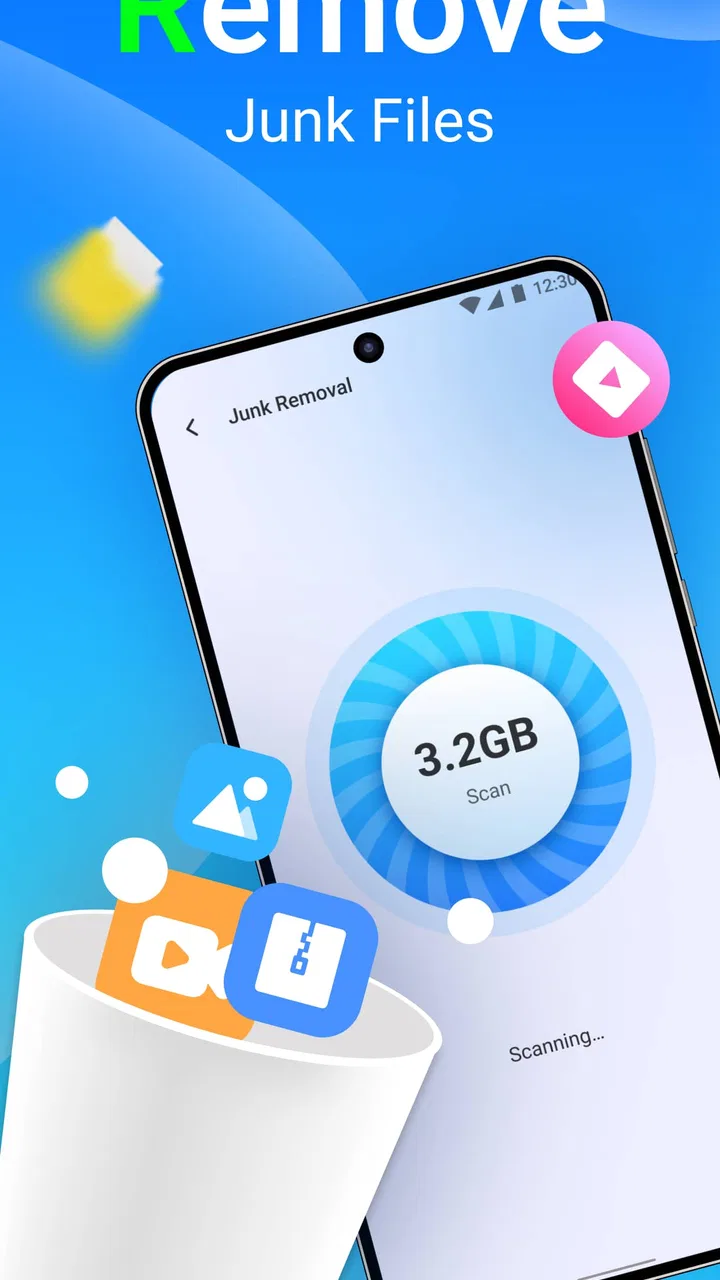
Keep Clean - File Master is an app designed to optimize and manage storage on your Android or iOS device. It helps users by cleaning junk files, managing large files, and enhancing device performance. With user-friendly features, it ensures your device runs smoothly by eliminating unnecessary clutter and freeing up valuable space.
02Is Keep Clean - File Master safe to use on my device?
Yes, Keep Clean - File Master is safe and reliable. The app is developed with security in mind, ensuring that no personal data is compromised during the cleaning process. It only targets unnecessary files and does not affect important system files or personal data, making it a trustworthy choice for device optimization.
03Does Keep Clean - File Master require an internet connection to function?
No, Keep Clean - File Master does not require an internet connection for its core cleaning and optimization functions. However, certain features, such as regular updates and accessing additional tools, may require an internet connection to ensure you have the latest enhancements and improvements.
04Can Keep Clean - File Master improve my device’s battery life?
Yes, Keep Clean - File Master can help improve battery life by optimizing device performance. By clearing background processes and unnecessary files, the app reduces the workload on your device, which can lead to better battery efficiency. This results in a longer-lasting battery, allowing you to use your device without frequent recharges.
05Are there any in-app purchases or ads in Keep Clean - File Master?
Keep Clean - File Master offers a free version that includes essential features supported by ads. For users seeking an ad-free experience and additional advanced features, a premium version is available through in-app purchases. This allows users to choose the level of functionality and convenience that best suits their needs.
Pros
- Intuitive interface for easy navigation.
- Efficient junk file cleaning boosts speed.
- Customizable cleaning schedules.
- Supports multiple languages.
- Minimal impact on battery life.
Cons
- Ads can be intrusive at times.
- Limited features in free version.
- Occasional false positives in cleaning.
- Requires internet for some features.
- Some tools overlap in functionality.

Keep Clean - File Master
Gallery